Volg deze stappen om bestanden te uploaden met de Plesk File Manager.
- Log in op je Plesk-account.
- Klik op Files in het zijmenu.

- Ga onder File Manager naar de map
httpdocs.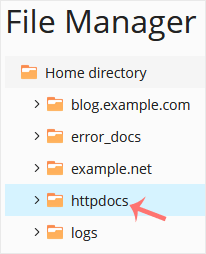
- Klik op het plus-icoon en kies Upload. Selecteer vervolgens het bestand dat je vanaf je computer wilt uploaden.
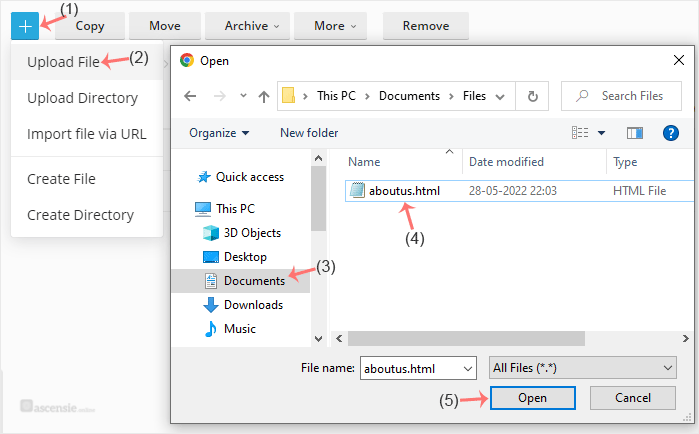
- Klik op Open.
Tip: je kunt meerdere bestanden selecteren. Houd de CTRL-toets ingedrukt en klik op de bestanden die je wilt selecteren.

