De WordPress-plugin werkt niet correct, of je wilt hem opnieuw installeren zonder gegevens te verliezen of de plugin te verwijderen.
Dit kun je doen bij zowel actieve als inactieve plugins.
- Log in op het WordPress-dashboard.
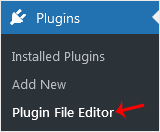
- Ga in het dashboardmenu naar Plugins en klik op Plugin-bestandseditor.
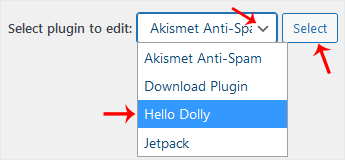
- Kies de plugin uit het keuzemenu Selecteer een plugin om te bewerken en klik op Selecteren.
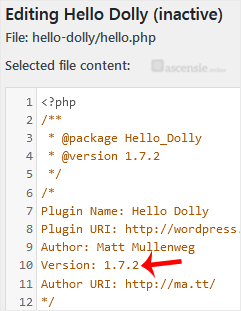
- Zoek in de bestandseditor de regel met de versie:
Version: 1.7.2
Wijzig deze in:
Version: 1.7.1
Wijzig de versie alleen van een hoger naar een lager nummer.
- Scroll omlaag en klik op Bestand bijwerken. Ga daarna terug naar de lijst Geïnstalleerde plugins. Er zou een update beschikbaar moeten zijn voor de plugin die je hebt bewerkt. Klik op Nu bijwerken.
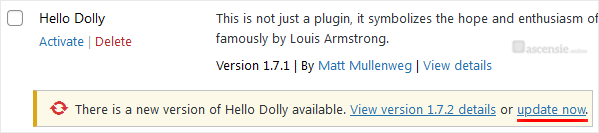
Je hebt de plugin geforceerd geüpdatet/opnieuw geïnstalleerd zonder gegevens te verliezen.

