- Log in op je Plesk-account.
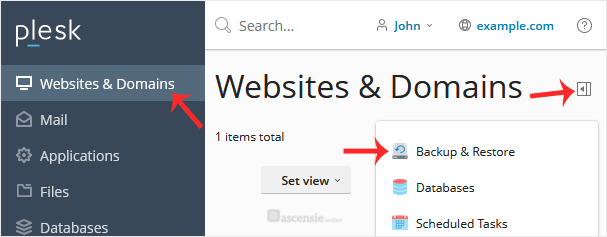
- Ga naar Websites & Domains > klik op het Pull-icoon > kies Backup & Restore.
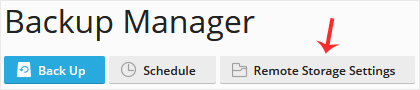
- Klik op Remote Storage Settings.
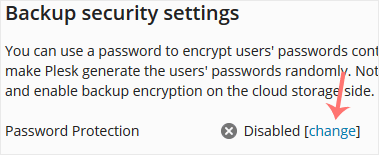
- Klik rechts van Password Protection op change als daar Disabled staat.
- Vink Use password protection aan en voer een wachtwoord in. Bevestig daarna met Apply.

Zorg dat je je wachtwoord op een veilige plek bewaart. Je hebt het nodig bij het terugzetten van een back-up. Als je je wachtwoord bent vergeten of er geen invoert, herstelt Plesk je back-up met een willekeurig databasewachtwoord.

