There was a problem loading the comments.

How to Change the Plesk Account's Contact Details

Support Portal  »  Kennisbank  »  Viewing Article

Print


Follow these steps to change your Plesk account's contact details.


1. Log in to your Plesk account.


2. Click on Account from the Sidebar Menu.
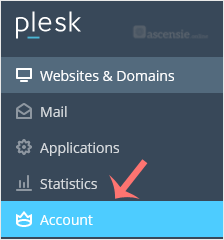
plesk-click-on-account-client.gif


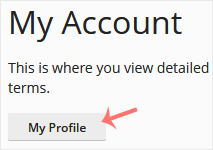
3. Click on My Profile.

plesk-myprofile-client.gif


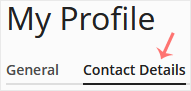
4. Click on Contact Details.

plesk-client-contact-details-tab.gif


5. Update the details as per your requirements.
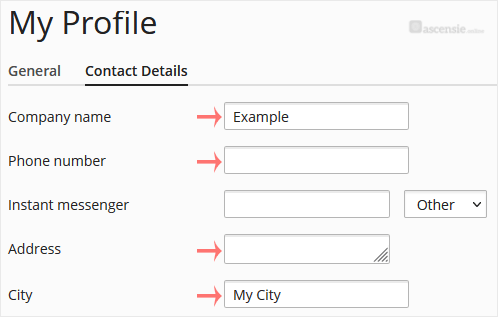
plesk-client-myprofile-modify-contact-details.gif


6. Click Apply.

plesk-apply-client.gif


You will see a success message signifying that your Plesk contact details have changed.


Share via
Did you find this article useful?

Comments

Add Comment

Replying to  


Self-Hosted Help Desk Software by SupportPal
© Zentic