Handleiding
Google Workspace e-mail toevoegen aan ander Workspace-account (zelfde organisatie)
Situatie
-
Organisatie: Google Workspace
-
E-mailadres A: gebruiker@bedrijf.nl (hoofdinbox)
-
E-mailadres B: info@bedrijf.nl (bestaand Workspace-account)
-
Doel:
⚠️ Let op: dit is geen alias, maar een los bestaand account.
Stap 1 – Ontvangen van mail (POP3)
-
Log in op Gmail van gebruiker@bedrijf.nl
-
Klik ⚙️ → Alle instellingen bekijken
-
Ga naar Accounts en import
-
Bij ‘E-mail ophalen van andere accounts’ →
Een e-mailaccount toevoegen
-
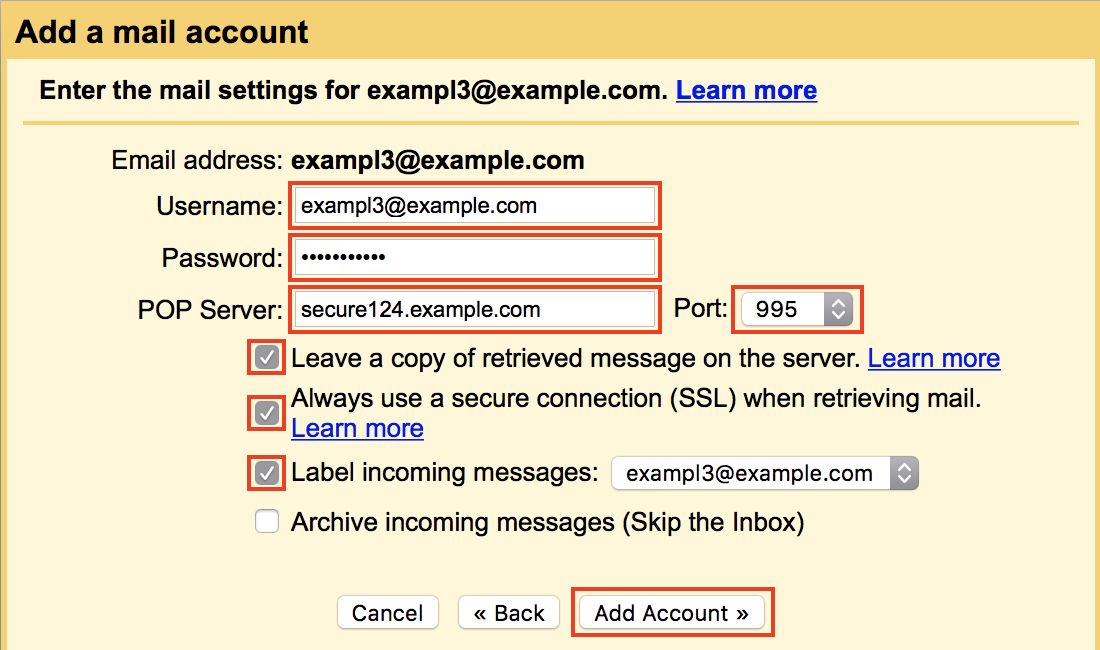
Vul in:
info@bedrijf.nl
-
Kies POP3
POP-instellingen (Google Workspace)
-
POP-server: pop.gmail.com
-
Poort: 995
-
Beveiliging: SSL
-
Gebruikersnaam: info@bedrijf.nl
-
Wachtwoord: wachtwoord van info@bedrijf.nl
(of app-wachtwoord als 2FA actief is)
Aanbevolen opties:
👉 Klik Account toevoegen
Stap 2 – Versturen als dat adres (Google SMTP)
-
In Accounts en import
-
Bij ‘E-mail verzenden als’ →
Nog een e-mailadres toevoegen
-
Vul in:
-
✔ Behandelen als alias aangevinkt
-
Kies Verzenden via SMTP-server
Google SMTP-gegevens
Gebruik altijd deze instellingen:
-
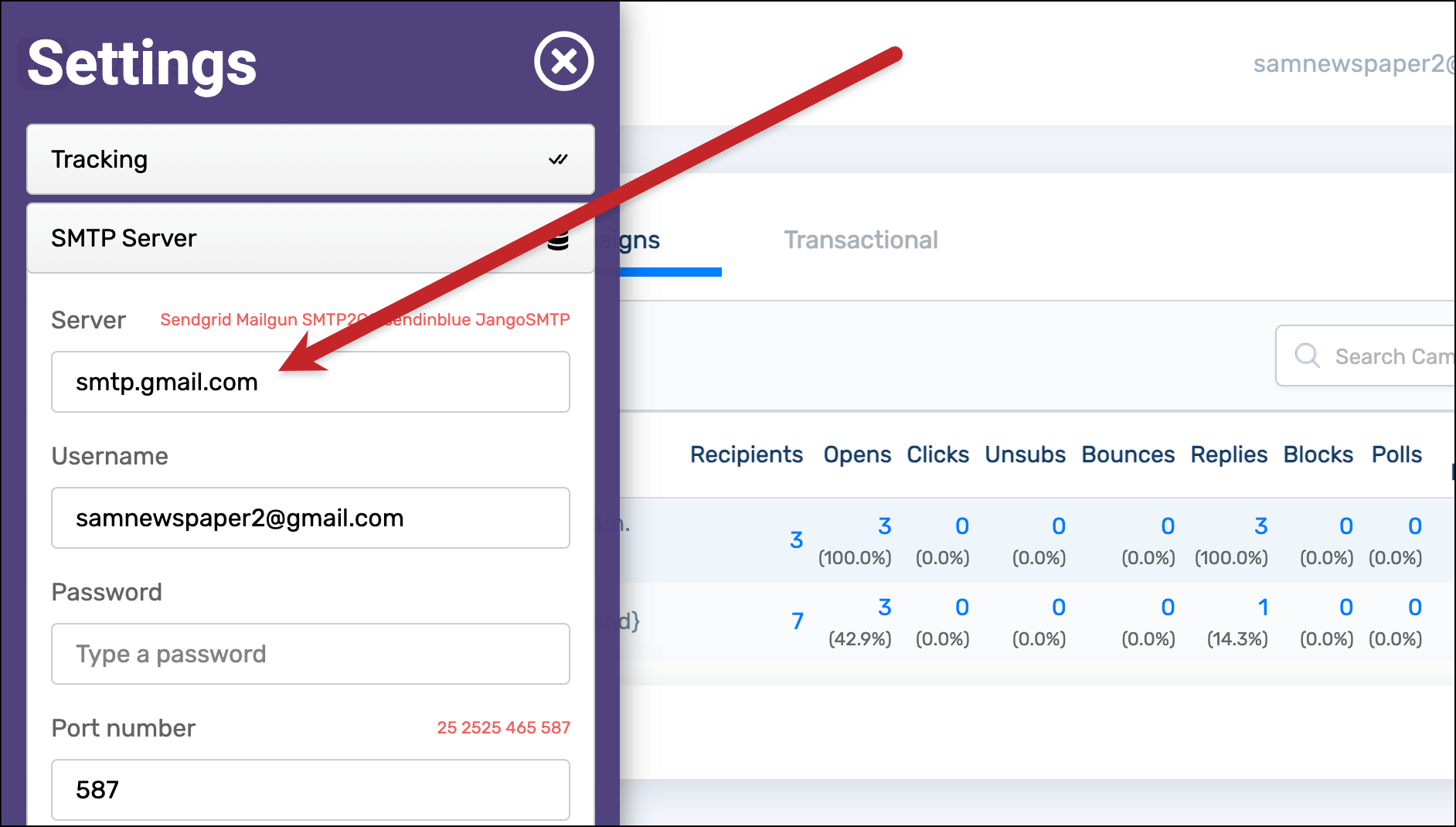
SMTP-server: smtp.gmail.com
-
Poort: 587
-
Beveiliging: TLS
-
Gebruikersnaam: info@bedrijf.nl
-
Wachtwoord: wachtwoord of app-wachtwoord
👉 Gmail stuurt een verificatiecode
👉 Log eventueel kort in op info@bedrijf.nl om deze te bevestigen
Stap 3 – Standaard afzender instellen (optioneel)
In ‘E-mail verzenden als’ kun je:
Stap 4 – Filters voor overzicht (aanrader)
-
Ga naar Filters en geblokkeerde adressen
-
Nieuw filter:
-
Acties:
Did you find this article useful?
Comments
Self-Hosted Help Desk Software by
SupportPal